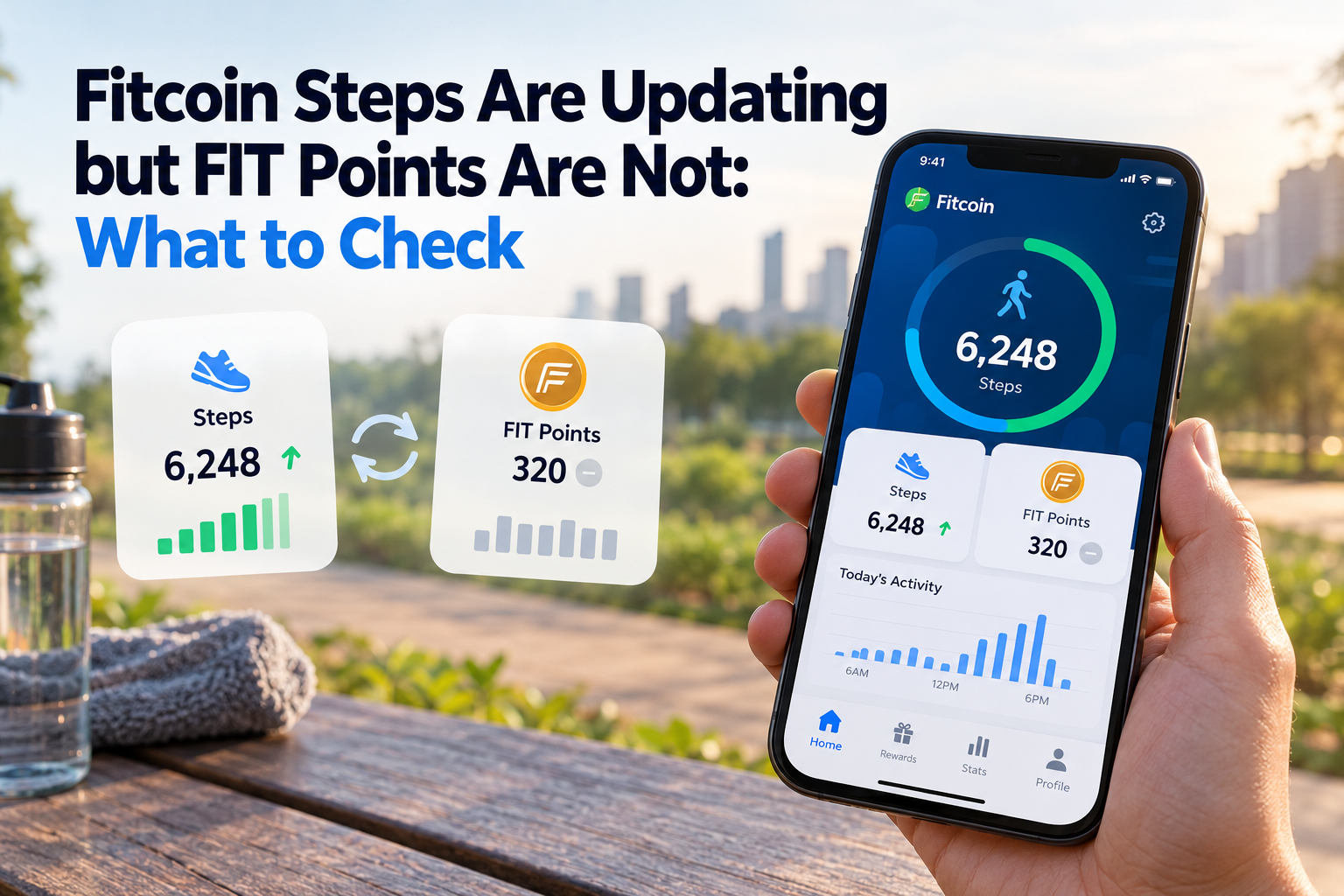
You finish a walk, open Fitcoin, and notice that your step count has increased. That part looks fine. But when you check your FIT points, the balance has not changed.
It is easy to assume something is broken. Sometimes there is a technical problem, but there are other possibilities worth checking first. A recorded step is not necessarily the same thing as an eligible reward, and the two may update at different stages.
This guide explains how to narrow down the issue without resetting your phone, reinstalling the app, or risking your account information.
Start by Checking What Actually Updated
Before changing any settings, open Fitcoin and look at the information displayed for today. Pay attention to the daily step count, any eligible activity progress, and your FIT points balance.
These figures may describe different things. Your step count represents recorded movement, while FIT points depend on the reward rules available to your account.
For example, imagine your step count increases from 3,200 to 4,100 after walking. Your phone has recorded additional movement. That alone does not establish whether those steps qualify for a new reward.
The useful question is not simply whether your balance changed. It is whether the activity met the requirements shown by the relevant Fitcoin feature.
1. Check the Current Reward Requirements
Start with the reward information displayed inside Fitcoin. Look for any eligibility conditions, required actions, daily limits, or minimum activity thresholds.
Do not assume every step automatically generates a fixed number of FIT points. Reward conditions may differ between activities, campaigns, account types, or product versions.
Check the following details:
- Is the activity currently eligible for FIT points?
- Is there a minimum requirement before a reward becomes available?
- Does the activity require you to claim or confirm a reward?
- Have you already reached the applicable daily limit?
- Does the feature have a specific availability period?
If a condition is unclear, use the current instructions inside the app rather than relying on an old screenshot or a social media post.
2. Make Sure You Are Looking at the Correct Day
A daily activity counter should be interpreted within its own date. Steps recorded yesterday should not be confused with the progress shown for today.
This can be particularly confusing around midnight. You may see a new daily counter while previous activity remains visible in a history section, where supported.
For a reliable comparison, record the date, the current step count, and the corresponding reward information before making any conclusions.
Also remember that changing the date or time settings on your phone is not a safe way to force activity or rewards to appear. It can make troubleshooting more difficult.
3. Check Whether the Reward Needs a Separate Action
Some activity and reward systems distinguish between completing an eligible task and claiming the corresponding reward.
When reviewing a Fitcoin feature, look for the instructions and buttons currently provided. If a claim action is required, follow the displayed process once and check whether the status changes.
Do not repeatedly press a claim button or submit the same request when the result is still processing. First wait for the interface to show whether the action succeeded or failed.
If your version does not offer a separate claim action for that feature, there is no reason to search for one.
4. Give the App a Chance to Refresh
Sometimes different parts of an app do not update at exactly the same moment. One screen may display recently recorded activity while another is still showing the previous account balance.
Make sure your internet connection is working. Then close the current screen, return to the relevant section, and check the information again.
If the app has a refresh or synchronization option, use the one provided.
A short delay does not automatically mean that points have been lost. However, if the displayed reward status remains inconsistent after a reasonable period, it is worth collecting the details for support.
5. If the Steps Also Stop Updating, Check Permissions
This is a different problem. If both the step count and the reward progress stop changing, investigate whether Fitcoin is receiving the activity information it needs.
On supported Android devices, open the phone settings and find Fitcoin under the installed applications. Review the available permissions, including Physical Activity if that permission applies to your device and app version.
Android introduced a dedicated activity recognition permission for apps that need access to certain motion and step-related information. The exact permission screens vary by Android version and manufacturer.
Battery-saving restrictions can also affect how some apps work in the background. Review the settings, but avoid disabling security features or granting unrelated permissions simply to troubleshoot a step counter.
Technical reference: Android Developers - Privacy changes in Android 10.
6. Use a Small Test Instead of Guessing
A short controlled test can make the problem much easier to understand.
- Open Fitcoin and note the current date and daily step count.
- Check the current FIT points balance and any visible reward progress.
- Walk normally for a few minutes while carrying your phone.
- Return to Fitcoin and check whether the step count increased.
- Review the relevant reward requirements and current status.
- Record what changed and what stayed the same.
Suppose the step count increases but the points balance remains unchanged. That result suggests looking at reward eligibility, claim conditions, or account updates before assuming the motion sensor has failed.
Now suppose the step count does not change at all. In that situation, permissions, device support, and activity tracking deserve attention first.
These examples are for troubleshooting. They are not a promise that any particular number of steps will earn FIT points.
7. Avoid These Common Mistakes
When a reward does not appear, making several changes at once can hide the original cause.
- Do not reinstall the app before checking whether your account and activity information are safely associated with your sign-in.
- Do not assume that a step count shown by another fitness app must match Fitcoin exactly.
- Do not treat FIT points as guaranteed cash, income, or an investment.
- Do not assume a reward available yesterday has identical conditions today.
- Do not share passwords, verification codes, or sensitive account details with anyone claiming they can repair your balance.
The better approach is to check one possible cause at a time. That way, if something changes, you know which action may have helped.
8. When Should You Contact Fitcoin Support?
If Fitcoin records your activity, you meet the requirements shown for the feature, and the expected reward still does not appear, contact the official support channel.
Provide enough information to explain the situation clearly:
- Your phone model and operating system version.
- The Fitcoin app version.
- The date and approximate time of the activity.
- The step count before and after the activity.
- The reward or feature you were using.
- Any error message or unusual account status.
A screenshot showing the relevant counters may be helpful, provided it does not expose private information.
You can start from the official Fitcoin Help Center, which links to available support and troubleshooting resources.
Frequently Asked Questions
Does every recorded step earn FIT points?
Not necessarily. A step counter measures activity, while any FIT points depend on the eligibility rules and features currently offered by Fitcoin.
Can I receive points for yesterday if I forgot to check?
Do not assume that rewards can be claimed retroactively. Review the specific feature instructions and its applicable time limits. If the result appears incorrect, contact support.
Should I delete the app when the balance does not update?
Reinstallation should not be the first troubleshooting step. Check the connection, reward conditions, account status, and app permissions first.
Why does another step counter show a different number?
Different devices and applications may use different sensors, activity sources, processing methods, or synchronization schedules. Small differences do not necessarily indicate a malfunction.
Final Thoughts
If Fitcoin displays new steps but no additional FIT points, begin by separating activity tracking from reward eligibility.
Check the current rules, the correct day, any required claim action, and the displayed account status. A short activity test can help identify where the difference begins.
If the results remain inconsistent, provide support with clear details instead of making repeated changes to your phone or account.
Fitcoin is intended to make everyday movement easier to follow and more engaging. Reward-related features should be understood according to their current terms, while your activity routine should remain realistic and sustainable.