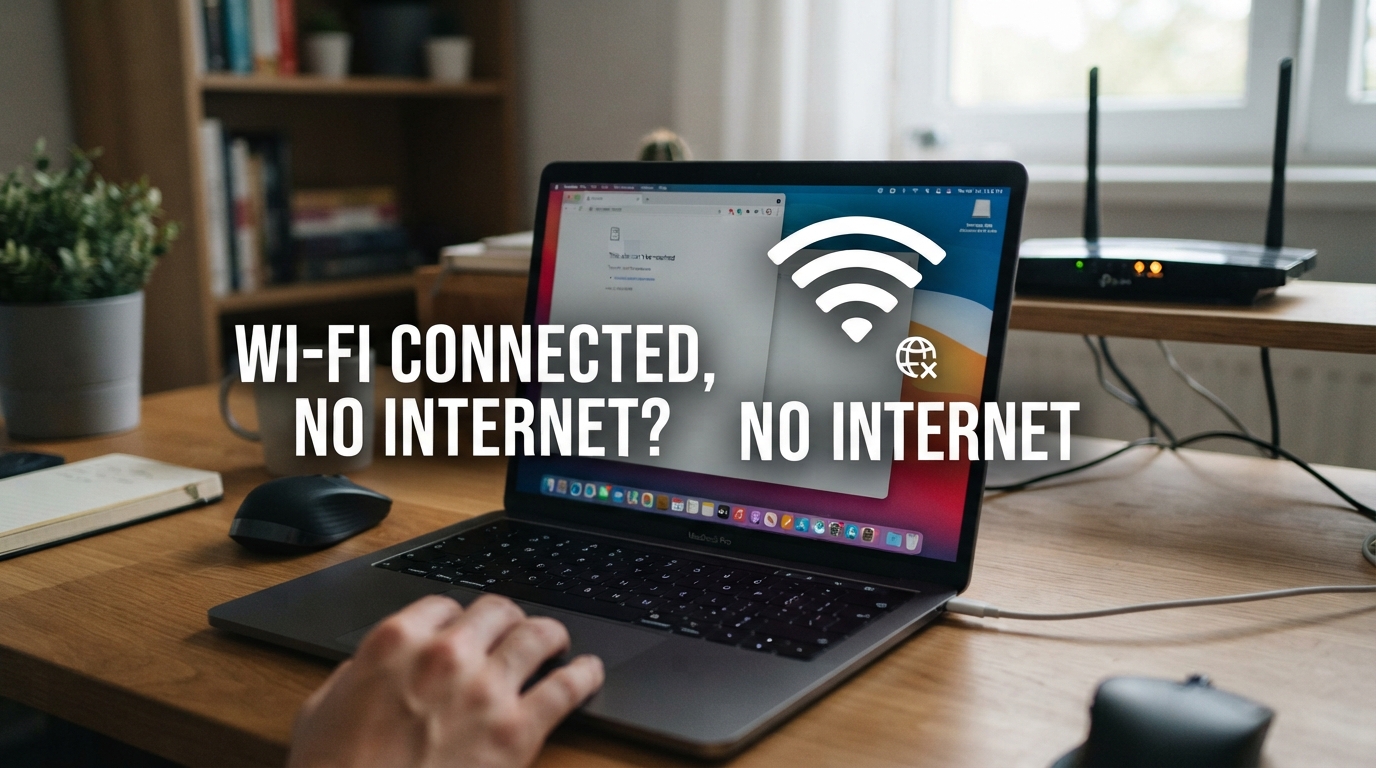
Your phone, laptop or PC shows that it is connected to Wi-Fi, the signal bars look normal, but websites refuse to load and apps say there is no internet connection. It is one of the most common and frustrating network problems — but in many cases you can fix it yourself in only a few minutes.
Why Does Wi-Fi Say Connected but There Is No Internet?
A Wi-Fi connection and an internet connection are not exactly the same thing. Your device can successfully connect to your router while the router itself is unable to reach the internet.
This is why you may see messages such as:
- Connected, no internet
- No Internet, secured
- Connected without internet
- Internet may not be available
- Wi-Fi has no internet access
Common causes include a temporary router problem, an ISP outage, an expired or incorrect IP configuration, DNS problems, VPN or proxy interference, network-driver problems or incorrect network settings.
Before Changing Anything: Find Out Where the Problem Is
The fastest way to troubleshoot this problem is to determine whether the failure affects one device or the entire network.
| Test | What It Usually Means |
|---|---|
| All phones and computers have no internet | The router, modem or internet provider is the likely source. |
| Only one laptop has the problem | The issue is probably on that laptop. |
| Wi-Fi fails but mobile data works | The phone itself can reach the internet, so the Wi-Fi network should be investigated. |
| Some websites work but others do not | DNS, VPN, firewall, browser or website-specific problems may be involved. |
1. Test Wi-Fi on Another Device
Before resetting settings or changing DNS servers, connect another phone, tablet or laptop to the same Wi-Fi network.
If the second device also cannot access the internet, the original phone or computer is probably not the problem. Focus on the router, modem or internet service.
If every other device works normally, troubleshoot the device that is failing.
2. Turn Wi-Fi Off and Back On
Disable Wi-Fi on your device, wait about 10 seconds, and enable it again.
This forces the device to disconnect and negotiate a fresh connection with the wireless network. On a phone, toggling Airplane Mode on briefly and then off can also reset several radio connections at once.
3. Restart the Phone or Computer
Restarting the affected device can clear temporary network processes and force the operating system to rebuild its connection.
This sounds simple, but official troubleshooting guidance for Windows, Android and Mac all includes restarting as an early troubleshooting step.
4. Restart the Router Properly
If multiple devices are affected, restart your router or modem-router.
- Unplug the router from power.
- Wait approximately 30 seconds.
- Reconnect the power.
- Wait for the internet and Wi-Fi lights to stabilize.
- Reconnect your device and test again.
Do not confuse a normal restart with a factory reset. Pressing and holding the router's reset button can erase your Wi-Fi name, password and ISP configuration. A factory reset should not be your first troubleshooting step.
5. Check for an ISP Outage
If every device is connected to Wi-Fi but none can access the internet, your internet provider may be experiencing an outage.
Use mobile data to check your provider's service-status page or support channel. You can also look at the router's internet or WAN light. A red, orange or completely unlit internet indicator can sometimes point to a connection problem between the router and the provider.
If the provider confirms an outage, changing settings on your laptop will not restore the connection.
6. Forget the Wi-Fi Network and Reconnect
A saved Wi-Fi profile can occasionally become corrupted or contain outdated settings.
On your device, choose the Wi-Fi network and select Forget or Forget This Network. Then reconnect and enter the password again.
This creates a fresh wireless profile and can fix issues caused by a damaged saved configuration.
7. Disable VPN and Proxy Temporarily
VPN applications and proxy settings modify how your internet traffic is routed. If a VPN server is unavailable or software is misconfigured, Wi-Fi can remain connected while websites stop loading.
Temporarily disconnect the VPN and test the internet again. If the connection immediately returns, investigate the VPN configuration before reconnecting it.
On Windows, also check:
Settings → Network & Internet → Proxy
If you do not intentionally use a manual proxy, make sure an unexpected manual proxy configuration has not been enabled.
8. Fix “No Internet, Secured” on Windows
If Windows shows No Internet, secured, the computer may be connected to the wireless router but unable to communicate correctly with the internet.
Microsoft recommends a set of network commands that can reset Winsock and TCP/IP, release and renew the IP address and clear the DNS resolver cache.
Open Command Prompt as Administrator
Search for Command Prompt, choose Run as administrator, and run these commands one at a time:
netsh winsock reset
netsh int ip reset
ipconfig /release
ipconfig /renew
ipconfig /flushdns
After running the commands, restart Windows and test the connection again.
9. Check Whether Your Device Has a Valid IP Address
Your router normally gives each device a local IP address using DHCP.
On Windows, open Command Prompt and type:
ipconfigLook for your Wi-Fi adapter's IPv4 address.
If Windows shows an address beginning with:
169.254.x.xMicrosoft notes that this can indicate that Windows was unable to obtain a normal IP address from the router.
Restarting the router, reconnecting to the network, and running ipconfig /release followed by ipconfig /renew may resolve the issue. If it persists, DHCP settings on the router may need investigation.
10. Check Whether DNS Is the Problem
DNS translates domain names such as example.com into IP addresses that computers can use.
A DNS problem can make the internet appear broken even when your basic connection is still working.
One quick Windows test is:
ping 1.1.1.1Then try:
nslookup example.comIf direct IP connectivity works but domain-name lookups repeatedly fail, DNS deserves closer investigation.
Try a Different DNS Resolver
As a troubleshooting step, you can temporarily configure Cloudflare's public DNS:
| DNS | Address |
|---|---|
| Preferred | 1.1.1.1 |
| Alternate | 1.0.0.1 |
If changing DNS fixes the issue, the previous DNS resolver may have been unavailable or incorrectly configured.
11. Reset Network Settings on Your Phone
If the problem affects only an iPhone or Android phone and ordinary troubleshooting has failed, resetting network settings can help.
Be aware that a network-settings reset can remove remembered Wi-Fi networks and other network-related settings, meaning you may need to enter Wi-Fi passwords again.
Android
The exact menu varies by manufacturer, but look in Settings for options such as Reset Wi-Fi, mobile & Bluetooth or Reset network settings.
iPhone
Look under the transfer/reset options in iPhone settings for Reset Network Settings.
12. Check Wi-Fi Drivers and Network Software on Windows
If the problem started after a Windows update, driver change or software installation, the Wi-Fi adapter driver may be involved.
Microsoft recommends considering a network-adapter driver reinstall when earlier troubleshooting steps fail, particularly if connectivity stopped working after a recent update.
Before uninstalling a driver, make sure you have access to the appropriate driver package or another way to download it if Windows cannot restore it automatically.
What If Wi-Fi Works on Your Phone but Not on Your Laptop?
This strongly suggests that the internet connection and router are functioning and that the problem is local to the laptop.
Focus on:
- Forgetting and reconnecting to the network.
- Disabling VPN or proxy software.
- Renewing the laptop's IP address.
- Flushing DNS.
- Checking the Wi-Fi adapter driver.
- Resetting Windows networking if necessary.
What If Wi-Fi Works on the Laptop but Not on the Phone?
If other devices work normally, restart the phone, forget the Wi-Fi network and reconnect.
On Android, Google recommends restarting the device and comparing Wi-Fi with mobile data as early troubleshooting steps. If the issue continues, network settings may need to be reviewed or reset.
What If All Devices Say Connected but No Internet?
When every device fails simultaneously, focus on the network infrastructure rather than individual phones and computers.
The most likely troubleshooting sequence is:
- Restart the router/modem.
- Check the WAN/internet indicator.
- Verify cables if applicable.
- Check your ISP's outage status.
- Contact the ISP if service does not return.
When Should You Factory Reset the Router?
A factory reset should generally be considered a last resort.
It can erase the router's custom settings, including Wi-Fi names, passwords, ISP authentication details, port-forwarding rules and other configuration.
If you do not know how to reconfigure the router afterward, contact your ISP or router manufacturer before performing a full reset.
Fast Troubleshooting Checklist
| Step | Action |
|---|---|
| 1 | Test the Wi-Fi on another device. |
| 2 | Toggle Wi-Fi or Airplane Mode. |
| 3 | Restart the affected device. |
| 4 | Restart the router for about 30 seconds. |
| 5 | Check for an ISP outage. |
| 6 | Forget and reconnect to Wi-Fi. |
| 7 | Disable VPN/proxy temporarily. |
| 8 | Renew IP and flush DNS. |
| 9 | Test or change DNS. |
| 10 | Reset network settings only if necessary. |
Frequently Asked Questions
Why does my Wi-Fi say connected but no internet?
Your device may be connected successfully to the local Wi-Fi router while the router has no working internet connection, or the device may have an IP, DNS, VPN, proxy or network-configuration problem.
Why does Windows say “No Internet, secured”?
It usually means Windows has connected securely to the Wi-Fi network but does not currently detect working internet access. Testing another device helps determine whether the problem is with Windows or the wider network.
Can DNS cause Wi-Fi to show no internet?
Yes. DNS failures can prevent websites and services from resolving domain names even when some underlying network connectivity still exists.
Will restarting the router fix the problem?
It can. A router restart can clear temporary connection problems and is especially worth trying when several devices lose internet access at the same time.
Should I press the reset button on my router?
Not initially. A factory reset can erase important router and ISP settings. Try a normal power restart first.
Why does Wi-Fi work on everyone else's phone except mine?
If other devices work on the same network, the issue is likely specific to your phone. Restart it, forget and reconnect to the network, check VPN settings and consider resetting network settings if simpler fixes fail.
Final Answer
When Wi-Fi is connected but the internet does not work, do not immediately reset everything. First identify whether the failure affects one device or the entire network.
For most users, the fastest path is: test another device → restart the device → restart the router → check the ISP → forget and reconnect → disable VPN → renew IP and DNS.
If all devices fail, the router or ISP deserves attention. If only one device fails, concentrate on that device's IP, DNS, VPN, network profile and adapter settings.
Sources
- Microsoft Support: Fix Wi-Fi connection issues in Windows.
- Google Android Help: Fix internet connection problems on Android devices.
- Apple Support: If your Mac isn't connecting to the internet over Wi-Fi.
- Cloudflare Developers: DNS resolver troubleshooting and 1.1.1.1.