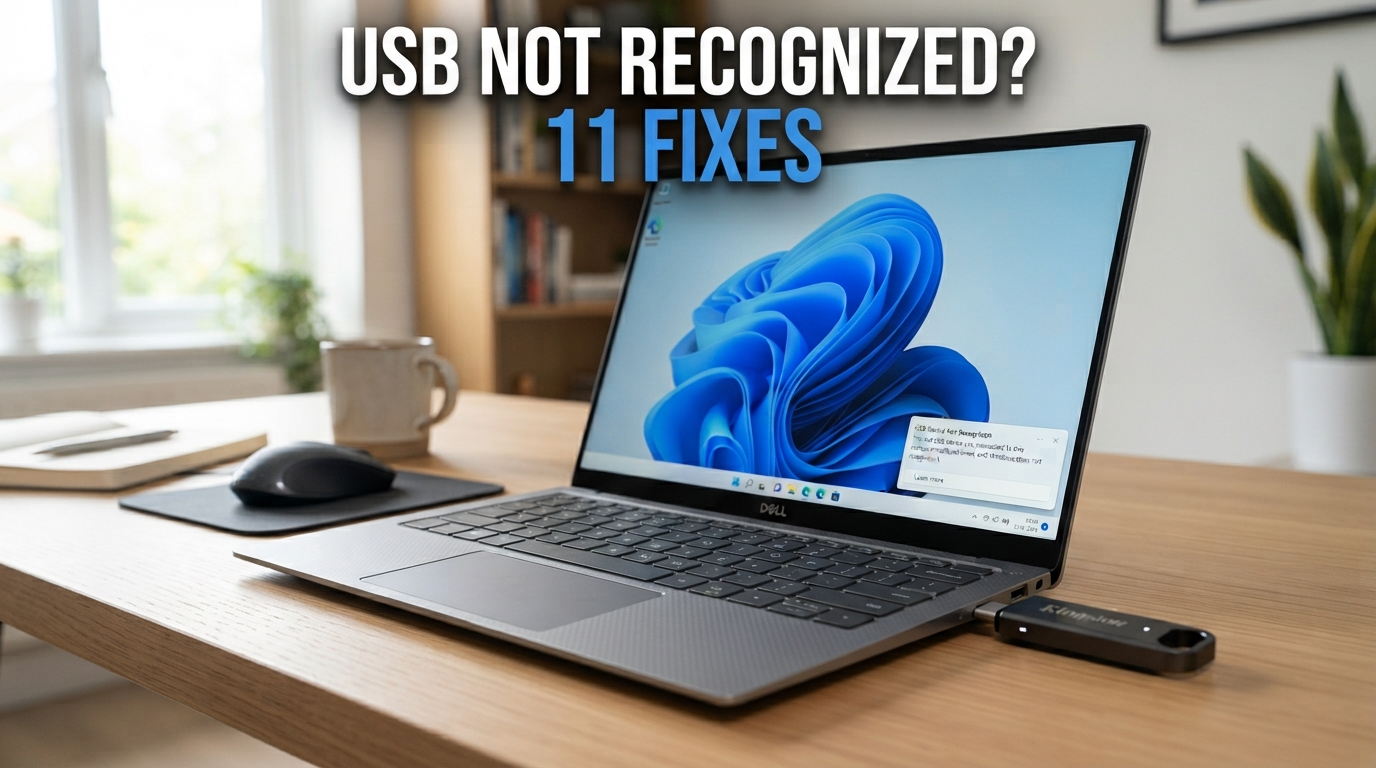
You plug a USB flash drive, external hard drive, mouse, keyboard, printer or another USB device into your Windows 11 PC — but nothing happens. The device may not appear in File Explorer, Windows may display USB Device Not Recognized, or Device Manager may show an unknown USB device.
The good news is that this does not automatically mean the USB device is dead. The problem may come from the USB port, cable, power delivery, Windows driver, missing drive letter, disk configuration or the USB device itself.
Why Does Windows 11 Say USB Device Not Recognized?
A USB device must successfully complete several steps before you can use it. The computer must detect the hardware, provide appropriate power, communicate with the device, load a compatible driver and — for storage devices — mount a usable volume.
A failure at any of these stages can make the device appear missing.
Common causes include:
- A temporary USB or Windows error.
- A faulty USB port.
- A damaged or incompatible cable.
- A USB hub or adapter problem.
- A driver problem.
- An external drive without a drive letter.
- A disk that is Offline or not initialized.
- A damaged file system or partition.
- Insufficient power for an external device.
- A physically failing USB drive or external disk.
First: Identify Exactly What Windows Can See
Before changing drivers or formatting anything, determine where the device appears.
| What You See | What It Suggests |
|---|---|
| Device works in another USB port | The original port, hub or connection may be the problem. |
| Device appears in Device Manager but not File Explorer | For storage devices, check Disk Management and the drive letter. |
| Drive appears in Disk Management | Windows can see the disk, but the volume configuration may need attention. |
| Device does not appear anywhere | Test the cable, port, another computer and the device hardware. |
| Unknown USB Device appears | Windows detects something on USB but may be unable to identify or communicate with it correctly. |
1. Disconnect and Reconnect the USB Device
Start with the simplest solution.
Safely disconnect the device if possible, wait a few seconds and reconnect it.
For a USB flash drive or external drive, wait long enough for Windows to detect and mount the device before unplugging it again.
If the problem appeared only once, this may be all that is required.
2. Try a Different USB Port
Connect the device to another USB port on the computer.
If you are using a desktop PC, try a USB port directly on the rear motherboard panel rather than only the front case ports.
If the device starts working immediately in another port, the problem may be isolated to the original USB port or its connection.
USB 2.0 vs USB 3.x
If several different port types are available, testing another port can also help identify compatibility or connection problems.
3. Remove the USB Hub or Adapter
If the device is connected through a USB hub, dock, extension cable or adapter, remove the intermediary device and connect the USB hardware directly to the computer.
Some USB devices — particularly external storage — may require more power or bandwidth than a problematic hub can reliably provide.
4. Restart Windows 11
Restarting Windows can clear a temporary driver, Plug and Play or device-enumeration problem.
Disconnect the USB device, restart the PC, allow Windows to fully load and then reconnect the device.
This is particularly useful when multiple USB devices suddenly behave abnormally after the computer has been running for a long time.
5. Test the USB Device on Another Computer
This is one of the most useful diagnostic steps.
Connect the same USB device to another computer.
If it works:
- The device itself is probably functional.
- Focus troubleshooting on your Windows PC.
If it does not work:
- Try another compatible cable if the device uses a removable cable.
- Check for physical damage.
- The USB device itself may have failed.
6. Check Device Manager
Right-click the Start button and open Device Manager.
Look under relevant sections such as:
- Disk drives.
- Universal Serial Bus controllers.
- Portable Devices.
- Human Interface Devices.
- Other devices.
Look for a device with a warning symbol or an entry such as Unknown USB Device.
Update the Driver
Right-click the affected device and review the available driver options.
You can also check Windows Update and the computer or device manufacturer for appropriate driver updates.
Reinstall a Problem Device
If a specific device has a corrupted driver installation, uninstalling that device from Device Manager and then restarting or reconnecting it can allow Windows to detect it again.
7. Check Disk Management If a USB Drive Is Missing
If the problem involves a USB flash drive or external HDD/SSD, File Explorer is not the only place to check.
Right-click Start and select:
Disk Management
You can also press:
Windows + R
and enter:
diskmgmt.msc
Look for the external disk in the lower section of the window.
If the Drive Is There but Has No Drive Letter
A storage volume without an assigned drive letter may not appear normally in File Explorer.
If the volume is healthy and appropriate to mount, you can right-click it and use the option to change or assign a drive letter.
If the Disk Is Offline
Disk Management can show a disk as Offline. If appropriate, it can be brought Online from Disk Management.
8. What If Disk Management Says Unallocated?
Be particularly careful if an external drive that previously contained important data suddenly appears as Unallocated.
Creating a new volume is appropriate for a genuinely new or intentionally erased disk, but it is not the first action you should take on a drive that unexpectedly lost its partition information.
If valuable data was previously stored on the disk:
- Do not format it immediately.
- Do not create a new volume simply to make it appear in File Explorer.
- Avoid unnecessary writes to the drive.
- Consider professional data recovery if the data is critical.
9. Check Windows Update and Manufacturer Drivers
USB functionality can depend on Windows, chipset drivers, USB controller drivers and device-specific software.
Open:
Settings → Windows Update
Check for available updates and restart the computer when required.
For laptops and branded desktop PCs, also check the manufacturer for current chipset, BIOS/firmware and USB-related drivers when appropriate.
For specialized USB hardware such as printers, audio interfaces, industrial devices and adapters, use the driver provided or recommended by the device manufacturer when required.
10. Check the Cable and Power Supply
Not every USB problem is caused by Windows.
External hard drives, docks, printers and other peripherals may depend on a specific cable or external power source.
Check:
- Whether the cable is damaged.
- Whether the connector is loose.
- Whether another compatible cable works.
- Whether the external power adapter is connected.
- Whether the device powers on normally.
A cable can sometimes provide power but fail to provide a reliable data connection, so a device lighting up does not always prove that the cable is fully functional.
11. Investigate USB Power Management Only If Needed
Windows includes USB power-management features designed to reduce energy use when USB devices are idle.
One of these technologies is USB Selective Suspend.
It allows Windows to suspend an individual idle USB port or device without affecting other USB devices.
If a specific USB device repeatedly disconnects after sleep or idle periods, power management may deserve further investigation.
USB Drive Detected but Not Showing in File Explorer
This situation is different from a completely undetected USB device.
If the drive appears in Disk Management but not File Explorer, investigate:
- Whether the volume has a drive letter.
- Whether the disk is Online.
- Whether Windows recognizes the file system.
- Whether the volume is healthy.
Do not assume that formatting is required.
External Hard Drive Not Detected
External HDDs and SSDs introduce additional variables compared with a simple USB flash drive.
Check:
- The USB cable.
- The USB port.
- The external enclosure.
- The power adapter, if used.
- Disk Management.
- Device Manager.
- Another computer.
If the drive makes unusual repeated clicking noises, disconnects constantly or disappears on multiple computers, hardware failure should be considered.
Unknown USB Device: Device Descriptor Request Failed
Sometimes Device Manager displays an error similar to:
Unknown USB Device (Device Descriptor Request Failed)
This means Windows has detected activity on the USB connection but could not successfully obtain the information required to identify and configure the device.
Start by:
- Disconnecting the device.
- Restarting Windows.
- Trying another USB port.
- Removing any hub or adapter.
- Testing another cable where applicable.
- Testing the device on another PC.
- Checking Device Manager and updates.
USB Works on One PC but Not Another
If the device works perfectly on another computer, that is useful information.
The affected PC may have:
- A damaged USB port.
- A driver issue.
- A chipset or firmware issue.
- A power-management problem.
- A Windows configuration problem.
Compare multiple ports on the affected computer before making major software changes.
USB Works for Mouse but Not External Drive
A working mouse does not prove that every USB device will work correctly on the same connection.
A mouse generally has much lower power and data requirements than an external storage device.
If low-power USB devices work but an external drive does not, investigate the drive cable, power requirements, hub, port and external enclosure.
Should You Format a USB Drive That Windows Cannot Open?
Not immediately.
If Windows asks you to format a drive that previously contained files, formatting can destroy access to the existing file-system structure and may complicate data recovery.
If you do not need the existing data and you have confirmed the drive should be erased, formatting may be appropriate.
If the files are important, stop and investigate the file system or consider data recovery first.
Quick 5-Minute USB Checklist
| Step | Action |
|---|---|
| 1 | Disconnect and reconnect the USB device. |
| 2 | Try another USB port. |
| 3 | Remove USB hubs and adapters. |
| 4 | Restart Windows 11. |
| 5 | Test the device on another computer. |
| 6 | Check Device Manager. |
| 7 | For storage, check Disk Management. |
| 8 | Check the cable and external power. |
| 9 | Install appropriate Windows and manufacturer updates. |
| 10 | Do not format a drive containing important data without understanding the problem. |
Frequently Asked Questions
Why is my USB device not recognized in Windows 11?
Possible causes include a temporary Windows error, faulty USB port, cable problem, driver issue, USB hub, insufficient power or hardware failure. For storage devices, a missing drive letter or disk configuration problem can also prevent the drive from appearing in File Explorer.
Why does my USB appear in Device Manager but not File Explorer?
If it is a storage device, check Disk Management. The disk may be detected while the volume has no drive letter, is Offline, has an unsupported or damaged file system, or has another volume-related problem.
How do I open Disk Management in Windows 11?
Right-click Start and select Disk Management, or press Windows + R, enter diskmgmt.msc and press Enter.
Should I format a USB drive that is not opening?
Not if it contains important data. Formatting destroys data on the formatted volume. Diagnose the drive first and consider recovery options if the files are valuable.
Why does my external hard drive work on another computer?
If it works normally elsewhere, the drive is likely functional and the problem may involve the affected PC's USB port, driver, Windows configuration, power delivery or chipset.
Should I disable USB Selective Suspend?
Not as a general fix. Selective Suspend is a Windows power-saving feature and Microsoft recommends keeping it enabled. Investigate power management only when a specific USB device has a reproducible sleep or resume problem.
Final Answer
When Windows 11 says USB Device Not Recognized, start with hardware isolation before making advanced software changes.
Try another USB port, remove hubs, restart the PC and test the device on another computer. Then check Device Manager.
If the problem involves a USB flash drive or external HDD/SSD, also check Disk Management. A drive can be detected by Windows without appearing in File Explorer because of its volume configuration or drive letter.
Most importantly, if the USB drive contains valuable data, do not rush to format, initialize or create a new volume simply to make the drive appear. Diagnose the problem first.
Sources
- Microsoft Support: Disk Management in Windows.
- Microsoft Learn: USB Selective Suspend.
- Microsoft Learn: Windows USB drivers and power management documentation.