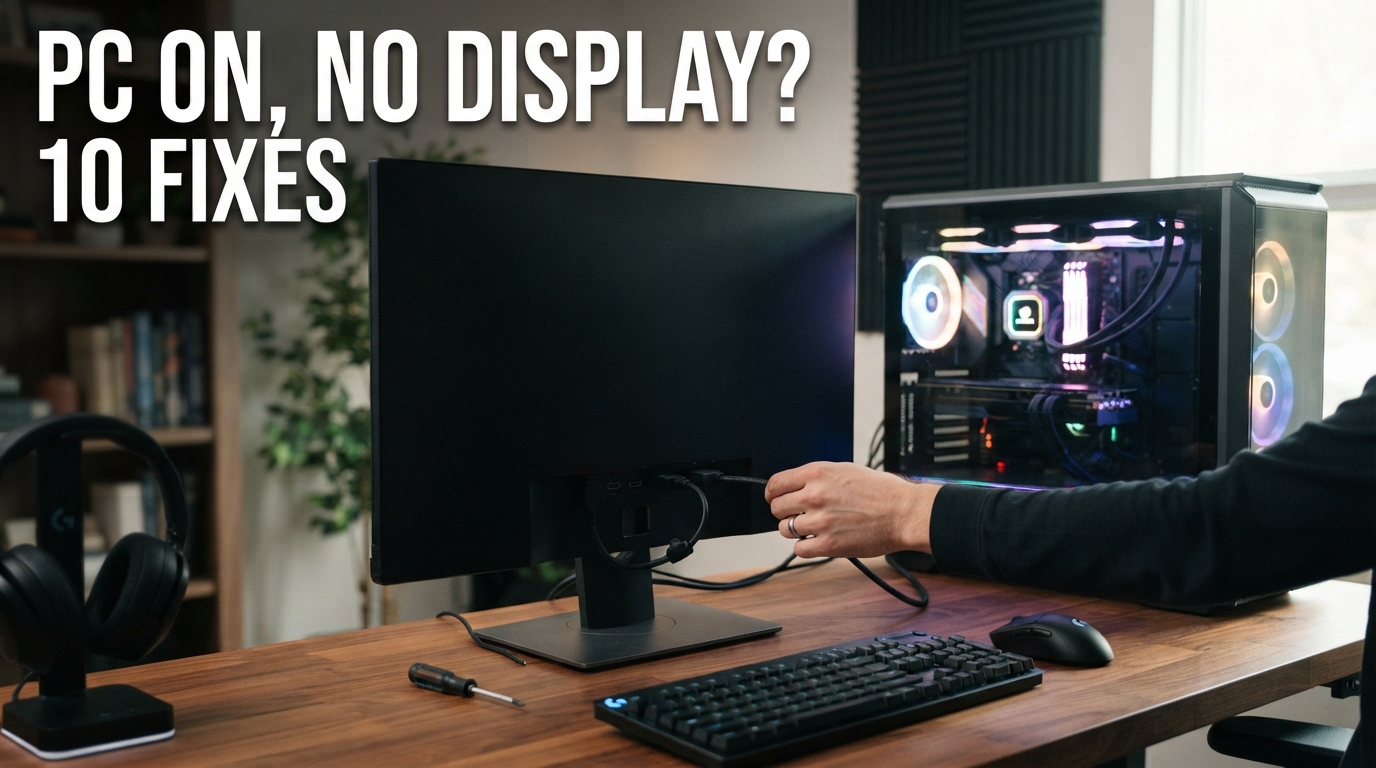
You press the power button. The fans start spinning. The keyboard lights up. Maybe you even hear Windows starting in the background.
But the monitor stays completely black.
This is one of the most common and frustrating PC problems — and it does not automatically mean your graphics card or motherboard is dead.
In many cases, the cause can be as simple as the wrong monitor input, a loose HDMI cable, improperly seated RAM or a graphics-driver problem.

A PC with spinning fans but no image can have anything from a simple cable problem to a failed RAM, GPU or motherboard component.
First: Identify Which Type of Black Screen You Have
Not every black screen is the same problem.
| What You See | Likely Category |
|---|---|
| No lights, no fans, no response | Power problem |
| Fans and lights turn on, but no logo or image ever appears | No Video / No POST |
| Manufacturer logo appears, but Windows does not load | Boot or Windows problem |
| Windows loads, then the screen turns black | Display driver, Windows process or display-output issue |
| Black screen with a mouse cursor | Often Windows Explorer, process or graphics-driver related |
This distinction matters because replacing hardware will not fix a Windows driver problem, while reinstalling Windows will not fix a disconnected monitor cable.
1. Check the Monitor First
Check the monitor power LED and make sure the screen is turned on.
If possible, open the monitor menu using its physical buttons.
If the monitor menu itself does not appear, the issue may be with the display rather than the PC.
Check the Input Source
Modern monitors often have several inputs such as:
- HDMI 1
- HDMI 2
- DisplayPort
- USB-C
- VGA on older displays
If the computer is connected through DisplayPort but the monitor is set to HDMI, the screen may simply show “No Signal”.
2. Check the HDMI or DisplayPort Cable
A cable can look connected while not being fully seated.
Remove it from both the computer and monitor, then reconnect it firmly.
Also try:
- A different HDMI or DisplayPort cable.
- A different port on the monitor.
- A different graphics-card output.
- A second monitor or television.
3. Make Sure You Are Connected to the Correct Video Port
This mistake is particularly common after moving a desktop PC.
Many desktop computers have two groups of display connectors:
- Ports on the motherboard.
- Ports on a dedicated graphics card.

If your desktop has a dedicated GPU, the monitor is normally connected directly to the graphics card rather than the motherboard video output.
If you have an NVIDIA or AMD dedicated graphics card, your HDMI or DisplayPort cable will usually need to be connected to that card.
Connecting the monitor to the motherboard instead may result in no display on systems where integrated graphics are unavailable or disabled.
4. Perform a Complete Power Reset
- Shut down the computer.
- Unplug the power cable.
- If it is a desktop, switch the PSU off if it has a rear switch.
- Hold the computer power button for around 15–20 seconds.
- Reconnect power.
- Try starting the PC again.
This can clear some temporary power or hardware initialization issues.
5. Remove Unnecessary USB Devices
Disconnect non-essential accessories before testing again.
Leave only:
- Monitor
- Keyboard
- Mouse
Remove external drives, USB hubs, printers, controllers and recently added hardware.
If the computer suddenly boots normally, reconnect devices one at a time to identify the problematic one.
6. Check and Reseat the RAM
RAM is one of the first internal components worth checking when a desktop powers on but fails to complete POST.

A RAM module that is not fully seated can prevent a PC from completing POST and may result in a black screen.
How to Test RAM
- Turn the PC off and disconnect power.
- Open the side panel.
- Release the RAM retaining clips.
- Remove the RAM.
- Reinstall it firmly until the retention mechanism locks.
- Try booting again.
If the PC has two or more memory modules, try starting with only one installed.
Then swap modules to test them individually.
7. Check the Graphics Card
If your PC has a dedicated GPU, make sure it is fully seated in its PCIe slot.
Also inspect its power connections.
Many modern graphics cards require separate PCIe or 12V power connectors from the power supply.
8. Look at Motherboard Debug LEDs or Listen for Beep Codes
Many motherboards include diagnostic indicators labeled:
- CPU
- DRAM
- VGA
- BOOT

Diagnostic LEDs can quickly indicate which stage of POST is failing, although their exact meaning should always be checked in the motherboard manual.
If the DRAM light stays on, memory becomes a strong suspect.
If VGA remains illuminated, investigate the GPU and video path.
A CPU diagnostic light can indicate a CPU, motherboard, BIOS or power-related initialization problem.
Some systems use beep patterns instead of LEDs.
9. Reset BIOS / CMOS
Incorrect firmware settings can occasionally prevent a computer from displaying video or successfully completing POST.
A CMOS reset restores firmware settings to defaults.
Depending on the motherboard, this may be done using:
- A Clear CMOS button.
- A dedicated motherboard jumper.
- Removing the CMOS battery temporarily according to the manufacturer's procedure.
10. If You Can See the Logo but Windows Turns Black
This changes the diagnosis significantly.
If the BIOS screen, PC manufacturer logo or Windows loading screen appears before the display turns black, then the monitor, cable and GPU are at least capable of producing video.
The problem may instead be within Windows.
Try the Windows Graphics Reset Shortcut
Microsoft recommends trying:
This attempts to reset the graphics driver. You may hear a beep or see the screen flicker if Windows responds.
Try Changing Display Mode
If Windows is sending the image to the wrong monitor or output, press:
Then try switching between the available display modes.
Use Safe Mode
If Windows starts in Safe Mode but the normal desktop remains black, a graphics driver or startup software issue becomes more likely.
From Safe Mode you can consider:
- Updating or reinstalling the graphics driver.
- Rolling back a recently changed graphics driver.
- Removing recently installed software.
- Using Windows recovery options after a problematic update.
Black Screen With a Mouse Cursor
A black screen with a visible mouse pointer is different from a PC that never displays anything.
Microsoft notes that this can be associated with a stalled Windows process or graphics-driver issue.
If Task Manager opens with Ctrl + Shift + Esc, check whether Windows Explorer is running.
If Explorer is unavailable or stopped, restarting the process may restore the desktop in some cases.
What If the PC Keeps Turning On and Off?
Repeated power cycling before any picture appears suggests the machine may be failing during POST.
Possible areas to investigate include:
- RAM.
- CPU initialization.
- GPU.
- Power supply.
- Motherboard.
- Recently installed hardware.
This is where motherboard LEDs, beep codes and testing with minimum hardware become especially useful.
Quick Troubleshooting Flowchart
PC turns on but screen is black
↓
Does the monitor have power?
↓
Check HDMI / DisplayPort and Input Source
↓
Try another cable and monitor
↓
Check that cable is connected to the correct GPU port
↓
Still no image?
↓
Reseat / test RAM
↓
Check GPU seating and GPU power
↓
Check CPU / DRAM / VGA / BOOT diagnostic LEDs
↓
Reset CMOS if appropriate
↓
If BIOS appears but Windows becomes black → troubleshoot Windows and graphics drivers.
Which Component Is Most Likely?
| Symptom | What to Check First |
|---|---|
| Monitor says No Signal | Cable, input source, graphics output |
| DRAM debug LED stays on | RAM seating and memory modules |
| VGA debug LED stays on | GPU, GPU power, PCIe seating |
| PC boots and Windows sound is heard but screen is black | Display path, monitor, cable, graphics driver |
| BIOS appears but Windows turns black | Windows graphics driver or startup issue |
| No POST and repeated restarts | RAM, power, CPU, motherboard, GPU |
| PC works with one RAM module but not another | Possible faulty memory module or slot |
When Should You Stop Troubleshooting?
Simple tests are useful, but some warning signs justify professional diagnosis.
- Burning smell.
- Smoke or sparks.
- Visible melted connectors.
- Liquid damage.
- A damaged or swollen component.
- A power supply making abnormal electrical noises.
- A laptop that must be significantly disassembled to access internal components.
Should You Replace the Graphics Card?
Not immediately.
A black screen alone is not enough evidence that a GPU has failed.
Always eliminate the easy possibilities first:
- Monitor.
- Cable.
- Input source.
- Wrong video connector.
- RAM.
- GPU power.
- Windows driver.
Replacing expensive hardware before isolating the fault is one of the most common troubleshooting mistakes.
Can a Bad PSU Cause No Display?
Yes.
A computer can sometimes power fans and LEDs while still failing to supply stable or sufficient power for the CPU or GPU to initialize correctly.
However, PSU testing can involve electrical risks, and users should not open a power-supply enclosure.
Can RAM Really Cause a Completely Black Screen?
Yes.
If the system cannot initialize memory during POST, it may never reach the point where video output begins.
This is why RAM testing is one of the most useful hardware checks after ruling out the monitor and cable.
Laptop Turns On but Screen Is Black
For laptops, some of the same logic applies:
- Increase screen brightness.
- Connect an external monitor.
- Try the Windows graphics reset shortcut.
- Disconnect external devices.
- Perform the manufacturer's recommended power reset.
If an external monitor works but the internal laptop display does not, the fault may involve the laptop panel, display cable, backlight or related hardware.
Frequently Asked Questions
Why does my PC turn on but show no display?
Common causes include a monitor or cable issue, incorrect input source, wrong video port, RAM that is not seated correctly, GPU problems, power issues or a failure during POST.
Can RAM cause no display?
Yes. If memory cannot initialize, the system may fail POST before video output appears.
Should I connect HDMI to the motherboard or graphics card?
If your desktop uses a dedicated graphics card, the monitor is normally connected directly to the graphics card. Exact requirements depend on the PC hardware configuration.
Why does Windows show a black screen after login?
Microsoft lists possible causes including a stalled Windows process, graphics-driver problems and incorrect display-output configuration.
What does Windows + Ctrl + Shift + B do?
It asks Windows to reset the graphics driver and can sometimes restore the picture when the graphics subsystem is temporarily unresponsive.
Can a bad graphics card still have spinning fans?
Yes. Spinning GPU fans do not prove that the graphics card is functioning correctly.
Can the power supply cause a black screen?
Yes. Insufficient or unstable power can prevent CPU or GPU initialization, although PSU diagnosis should be performed carefully and the PSU enclosure should never be opened by an unqualified user.
When should I take the PC to a repair shop?
If basic display, cable, RAM and GPU checks do not isolate the fault — or if there are signs of electrical damage — professional hardware testing is appropriate.
Final Takeaway
A computer that powers on but produces no image can look like a catastrophic failure, but the cause is often much simpler.
Always troubleshoot from the outside inward.
Start with the monitor, input source and cable.
Then make sure the display is connected to the correct graphics output.
If there is still no image, move to RAM, GPU power and motherboard diagnostics.
And if you can see the BIOS or manufacturer logo before the screen goes black, shift your attention toward Windows and the graphics driver rather than immediately replacing hardware.
- Microsoft Support — Troubleshooting blank screens in Windows.
- Microsoft Support — Windows recovery options.
- Dell Support — No Power, No POST, No Boot and No Video troubleshooting.
- Intel Support — No Boot / No Display troubleshooting for desktop systems.
NewsHub note: Hardware layouts and diagnostic procedures vary by manufacturer. Always consult the service manual for your exact PC or motherboard before removing components or resetting firmware settings.