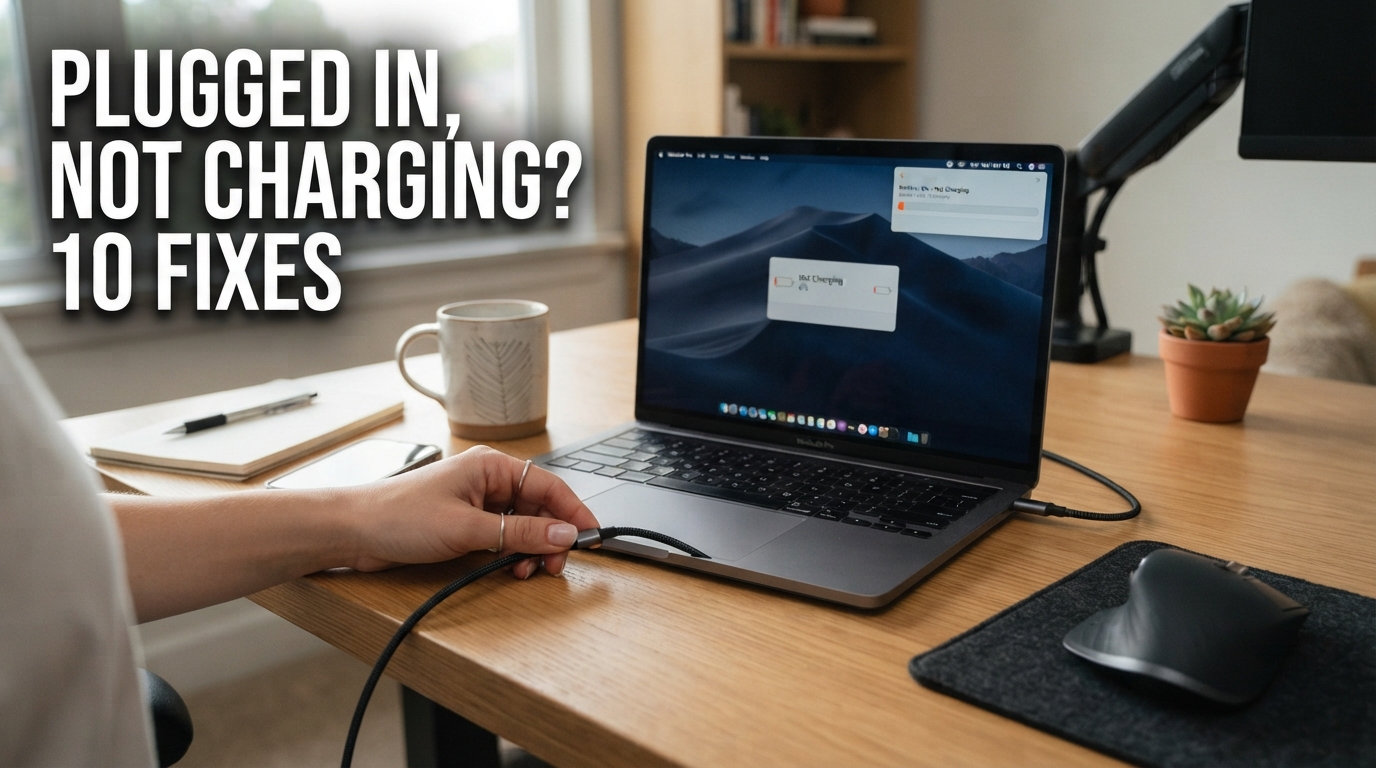
You plug your laptop into the charger and Windows shows that AC power is connected — but the battery percentage does not increase.
Maybe it stays at 0%, 55%, 80% or another number for hours.
In some cases, the laptop even says Plugged in, not charging.
That does not automatically mean you need a new battery.

A laptop that is plugged in but not charging can have a charger, battery, port, software or intentional charge-limit issue.
First: Is It Really a Charging Failure?
Before replacing anything, check exactly what the laptop is doing.
| Symptom | Possible Meaning |
|---|---|
| Battery stays at 60% or 80% | Battery protection / charge limit may be enabled |
| Battery stays at 0% even while plugged in | Battery, adapter, charging circuit or connection issue |
| Laptop works on charger but switches off immediately when unplugged | Battery may be severely degraded, disconnected or failed |
| Laptop only charges when cable is held at an angle | Charging port, plug or cable may be damaged |
| Battery charges very slowly | Underpowered charger, heavy workload, dock or USB-C power issue |
| Laptop does not recognize the charger | Adapter, cable, connector, port or charger-identification issue |
1. Check the Power Outlet and Charger
Disconnect the charger and inspect the entire power path.
Check:
- The wall outlet.
- The AC cable.
- The power adapter brick.
- The USB-C or barrel connector.
- The laptop charging port.
Try another wall socket before assuming the laptop is faulty.
If your charger has an LED indicator, check whether it remains illuminated normally.
2. Check for Physical Damage
Inspect the charging cable carefully.
Look for:
- Frayed insulation.
- Bent connectors.
- Loose plugs.
- Burn marks.
- Damaged USB-C tips.
- A charger brick that becomes abnormally hot.
Then inspect the laptop charging port.
The connector should normally fit firmly rather than moving excessively.

A loose charging port can make the laptop alternate between charging and battery power.
3. Make Sure the Charger Has Enough Wattage
This is particularly important with modern USB-C laptops.
A USB-C charger may physically fit and still be unable to provide enough power.
For example, a laptop designed for a 65W or 100W charger may charge extremely slowly — or not charge under load — when connected to a much lower-power adapter.
USB-C Does Not Automatically Mean “Any Charger Works”
USB-C describes the connector, not necessarily the maximum amount of power available.
The adapter, cable, laptop and USB Power Delivery negotiation all matter.
4. Connect the Charger Directly to the Laptop
If you are charging through a USB-C dock or hub, disconnect it temporarily.
Connect the charger directly to the laptop.
A powered dock or hub may consume part of the adapter's available power before passing the remainder to the laptop.
This can result in warnings about slow charging or insufficient power on some systems.
5. Restart the Laptop and Perform a Power Reset
A temporary controller or firmware problem can sometimes interfere with charging.
Start with a normal Windows restart.
If the problem remains, follow the manufacturer's recommended power-reset procedure.
Typical basic procedure
- Shut down Windows.
- Disconnect the charger.
- Disconnect non-essential USB devices.
- If the battery is removable, remove it according to the manufacturer's instructions.
- Hold the laptop power button for around 15–30 seconds.
- Reconnect the charger.
- Start the laptop.
6. Is the Battery Stuck at 60% or 80%?
This is one of the most misunderstood laptop battery “problems.”
It may not be a problem at all.
Many laptop manufacturers offer battery-health features that intentionally prevent the battery from remaining at 100% for long periods.
For example, ASUS Battery Care modes can limit maximum charge to levels such as 60% or 80% on supported devices.
Dell, Lenovo, ASUS and other manufacturers may use different names for similar battery-management features.
Look in:
- The manufacturer's battery utility.
- BIOS / UEFI.
- Device management applications.
- Battery-health or charging settings.
7. Generate a Windows Battery Health Report
Windows 11 includes a built-in battery-report tool.
Open Command Prompt or Terminal and run:
powercfg /batteryreportWindows will generate an HTML file and display its location.
Open that report in your browser.

The Windows battery report can help show how the battery's usable capacity compares with its original design capacity.
What Should You Look For?
Pay particular attention to:
- Installed battery.
- Design capacity.
- Full charge capacity.
- Recent usage.
- Battery usage.
- Capacity history.
Design Capacity vs Full Charge Capacity
These two numbers are particularly useful.
| Battery Report Item | Meaning |
|---|---|
| Design Capacity | The approximate capacity the battery was designed to hold when new |
| Full Charge Capacity | The approximate amount the battery can currently hold when fully charged |
For example, suppose the report shows:
DESIGN CAPACITY:       60,000 mWh
FULL CHARGE CAPACITY:  42,000 mWh
A simple estimate would suggest the battery currently holds around 70% of its original design capacity.
That does not by itself prove the battery must immediately be replaced, but it provides useful evidence of battery aging.
8. Check Battery and Adapter Information in BIOS
Some laptop manufacturers provide battery and AC adapter information directly in BIOS or UEFI.
For example, supported Dell systems can report whether the AC adapter is correctly detected.
This is valuable because it lets you diagnose charging outside Windows.
Why BIOS Testing Matters
If the BIOS itself cannot recognize the charger correctly, reinstalling Windows is unlikely to solve the underlying issue.
Adapter recognized correctly in BIOS
↓
Check battery health, Windows, charge-limit settings and drivers.
Adapter shown as Unknown / None
↓
Investigate charger, cable, connector, charging port or hardware identification.
9. Reinstall the Windows Battery Devices
Windows uses battery-related devices and drivers to communicate power information to the operating system.
If the battery indicator or charging state appears incorrect, you can inspect the Battery section in Device Manager.
Open:
Device Manager → Batteries
Depending on the system, entries may include:
- Microsoft AC Adapter.
- Microsoft ACPI-Compliant Control Method Battery.
A common troubleshooting approach is to uninstall the relevant battery device entry and restart Windows so it can be detected again.

10. Update BIOS, Firmware and Manufacturer Utilities
Charging behavior is not controlled by Windows alone.
The laptop's embedded controller, BIOS/UEFI and manufacturer utilities can also influence charging.
Check your exact laptop manufacturer and model for:
- BIOS updates.
- Firmware updates.
- Chipset drivers.
- Battery management software.
- Power-management updates.
Battery, Charger or Charging Port: How Can You Tell?
| Symptom | Strong Suspect |
|---|---|
| Laptop works normally on charger but shuts off immediately when unplugged | Battery |
| Battery charges with another compatible charger | Original charger / cable |
| Charging starts only when connector is held in a certain position | Port or cable |
| Charger not recognized in BIOS | Adapter, connector, port or identification circuit |
| Battery report shows severely reduced capacity | Aged battery |
| Stops consistently at 80% | Check charge-limit mode first |
| Charges when laptop is off but drains while gaming | Possible insufficient charger wattage or high system load |
Why Does the Battery Charge When the Laptop Is Off but Not While It Is Running?
This can happen when the adapter is providing enough power to charge an idle or powered-off laptop but not enough to simultaneously run the computer under heavy load and charge the battery.
Gaming laptops and high-performance workstations are particularly sensitive to adapter wattage.
Check that the charger matches the wattage recommended for your exact model.
Why Does It Say “Slow Charger”?
A slow-charger warning usually means the laptop is receiving power but not at the expected rate.
Possible causes include:
- Low-wattage USB-C charger.
- USB-C cable with insufficient power capability.
- Charging through a dock.
- Damaged adapter.
- Using the wrong USB-C port.
USB-C Charging: Check the Port Too
Not every USB-C port on every laptop necessarily supports charging.
Some USB-C ports may provide data only, while others support Power Delivery.
Look for markings near the port or consult the laptop manual.
What If the Laptop Says 0% Available, Plugged In?
If the percentage remains at 0% despite being connected for a long period, start with:
- Charger recognition.
- Correct adapter wattage.
- Battery detection in BIOS.
- Windows battery report.
- Manufacturer diagnostics.
If the laptop immediately shuts down when power is disconnected, battery failure becomes a much stronger possibility.
What If the Battery Percentage Never Changes?
Compare the percentage while the laptop is:
- Powered off and charging.
- Idle in Windows.
- Under heavy CPU/GPU load.
If charging only fails under load, investigate charger wattage and power requirements.
If it never charges under any condition, investigate the battery, adapter and charging hardware.
Signs That the Battery May Actually Need Replacement
Do Not Ignore a Swollen Battery
Microsoft warns that a severely deteriorated lithium-ion battery may visibly expand.
Signs can include:
- Trackpad lifting upward.
- Keyboard or palm rest bulging.
- Bottom cover separating.
- Laptop no longer sitting flat.
Quick Troubleshooting Flowchart
Laptop is plugged in but not charging
↓
Try another wall outlet
↓
Inspect charger, cable and port
↓
Confirm correct charger wattage
↓
Connect charger directly — bypass dock/hub
↓
Restart / perform manufacturer-approved power reset
↓
Stops at exactly 60% or 80%?
Yes → Check battery-care / charge-limit setting
No → Continue
↓
Run powercfg /batteryreport
↓
Check battery and adapter detection in BIOS
↓
Inspect battery devices / drivers in Windows
↓
Run manufacturer diagnostics and updates
↓
Still not charging? → Hardware diagnosis may be required.
Should You Buy a New Battery Immediately?
Usually, no.
A laptop that does not charge can have several causes unrelated to the battery itself.
Before ordering a replacement, eliminate:
- Faulty charger.
- Incorrect wattage.
- Damaged cable.
- Loose charging port.
- USB-C dock power limitations.
- Charge-limit settings.
- Firmware issues.
- Incorrect battery status in Windows.
Can You Use a Higher-Wattage Charger?
Use chargers that meet the laptop manufacturer's supported specifications.
With properly implemented USB Power Delivery systems, the devices negotiate supported power levels rather than automatically forcing the adapter's maximum wattage into the laptop.
However, connector compatibility alone is not enough to prove that a charger is suitable.
Always verify the laptop manufacturer's voltage, wattage and USB-C/PD requirements.
Can You Use a Phone USB-C Charger?
Sometimes a phone charger may provide some power to a compatible USB-C laptop, but it may be far below the laptop's required wattage.
The result can be:
- Very slow charging.
- No charging while the laptop is running.
- Battery percentage falling even while connected.
- Slow-charger warnings.
Does Leaving the Laptop Plugged In Damage the Battery?
Modern laptops include charging-management systems, but lithium-ion batteries still age over time.
Microsoft notes that keeping lithium-ion batteries at high charge levels for extended periods can contribute to capacity loss.
That is one reason some manufacturers offer 60%, 80% or similar charge-limit modes for laptops that spend most of their time connected to AC power.
Frequently Asked Questions
Why is my laptop plugged in but not charging?
Common causes include a faulty or underpowered charger, damaged charging port, charge-limit setting, degraded battery, firmware problem or charging-circuit fault.
Why does my battery stop charging at 80%?
Some manufacturers intentionally limit charging to around 80% to reduce the amount of time the lithium-ion battery spends at a high state of charge. Check the manufacturer's battery-care settings before assuming the battery is faulty.
Why does my laptop stop charging at 60%?
A battery longevity or conservation mode may be configured to stop charging at approximately 60% on supported laptops.
How can I check battery health in Windows 11?
Open Command Prompt or Terminal and run powercfg /batteryreport. Windows generates an HTML report containing battery capacity and usage information.
How do I know if my charger is too weak?
Compare its rated wattage with the specification for your laptop. Slow-charger warnings, charging only while powered off, or battery drain during heavy use can also suggest insufficient available power.
Can a charging port cause the battery not to charge?
Yes. A damaged or loose charging port can interrupt power or charger detection.
Should I uninstall the Microsoft ACPI battery driver?
Reinstalling battery-related devices through Device Manager can help with some Windows reporting problems, but it will not repair a physically failed battery or charging circuit.
Is a swollen laptop battery dangerous?
A swollen lithium-ion battery is a safety concern. Stop using the laptop, avoid pressing or puncturing the battery, and arrange professional service.
Final Takeaway
“Plugged in, not charging” does not automatically mean “buy a new battery.”
Start with the simplest things: the outlet, charger, cable and charging port.
Then confirm that the adapter provides enough power for the laptop.
If the battery repeatedly stops at exactly 60% or 80%, investigate battery-protection settings before doing anything else.
Use Windows' built-in powercfg /batteryreport command to check capacity information, and use BIOS or manufacturer diagnostics to confirm whether the battery and AC adapter are detected properly.
Only after eliminating the charger, port, software settings and firmware should battery replacement become the main conclusion.
- Microsoft Support — Caring for your battery in Windows
- Dell Support — Troubleshoot Battery Not Charging
- ASUS Support — Battery and Power Adapter Specifications and Recommended Usage
- ASUS Support — Battery Not Charging / Battery Not Charging to Full
NewsHub note: Charging systems and battery-care features vary by laptop manufacturer and model. Always check the specifications and service instructions for your exact device before replacing a charger, battery or internal component.