iPhone Not Charging? 12 Ways to Fix It in 2026
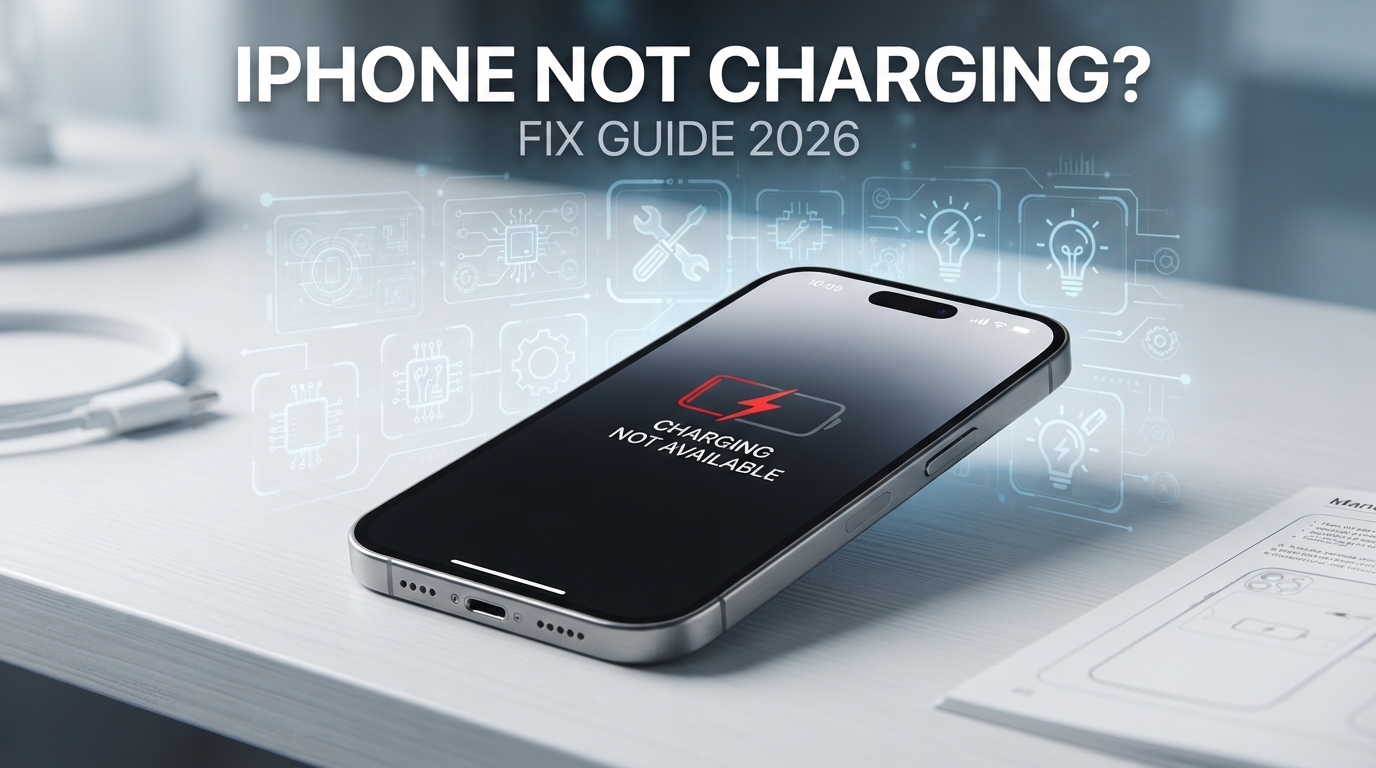
Is your iPhone not charging even when you connect it to a charger? This is one of the most frustrating smartphone problems because your battery can continue dropping while you are trying to charge the device.
The good news is that an iPhone that is not charging does not always have a serious hardware problem. A damaged cable, faulty power adapter, dirty charging port, software problem, overheating, moisture detection, or an incompatible accessory can all prevent normal charging.
In this complete guide, we explain 12 practical ways to fix an iPhone that is not charging in 2026. Start with the simple solutions first and continue through the guide until you find the cause.
Why Is My iPhone Not Charging?
There are several possible reasons why an iPhone may stop charging. The most common causes include a damaged charging cable, defective power adapter, blocked charging port, software glitch, excessive heat, moisture inside the connector, or a hardware problem.
Sometimes the iPhone shows the charging symbol but the battery percentage does not increase. This can happen when the phone is using more power than the charger is providing, when the device is very hot, or when there is a problem with the charging connection.
1. Check Your Charging Cable
The first thing you should check is the charging cable.
Cables can become damaged after months or years of bending, twisting, or daily use. Look for visible damage, exposed wires, bent connectors, loose ends, or signs of wear.
Try another known-good cable and connect it to your iPhone. If the phone immediately starts charging, the original cable is probably the problem.
For older iPhone models that use Lightning, try another Lightning cable. For newer USB-C iPhone models, try another USB-C cable.
2. Test a Different Power Adapter
The power adapter can also cause charging problems.
Try another reliable power adapter and connect your iPhone again. If possible, use a reputable USB-C power adapter and a compatible cable.
If the iPhone charges normally with another adapter, the original charger may be defective or unable to provide stable power.
3. Try Another Power Outlet
Do not assume the wall outlet is working correctly.
Plug the charger into another outlet and test the iPhone again. You can also try charging from another reliable power source.
If the phone works from another outlet, the original outlet or power source may be the reason for the charging problem.
4. Inspect the iPhone Charging Port
Dust, lint, and small debris can accumulate inside the charging port over time. This can prevent the cable from making proper contact with the charging connectors.
Turn off the iPhone and inspect the charging port using a good light. If you can see debris, do not use metal objects or force anything into the port.
Apple also advises against inserting foreign objects into a wet connector. If you are unsure how to clean the port safely, professional cleaning is the better option.
5. Force Restart Your iPhone
A temporary software problem can sometimes interfere with charging.
For many modern iPhone models, press and quickly release the volume up button, press and quickly release the volume down button, then press and hold the side button until the Apple logo appears.
After the iPhone restarts, connect the charger again and check whether the battery begins charging.
6. Let Your iPhone Cool Down
Temperature can affect charging performance.
If your iPhone becomes very warm while charging, using demanding applications, playing games, or sitting in direct sunlight, disconnect it and allow it to return to a normal temperature.
Do not place the phone in a freezer or use extreme cooling methods. Simply move it to a cool and dry location and allow it to cool naturally.
7. Check for a Liquid Detection Alert
If your iPhone displays a warning that liquid has been detected in the charging connector, disconnect the cable and do not continue normal wired charging while the connector is wet.
Apple recommends disconnecting the cable, placing the iPhone in a dry area with airflow, and allowing it time to dry. After at least 30 minutes, you can try charging again. If the warning continues, additional drying time may be required.
Do not use a hair dryer, external heat source, compressed air, or rice to dry the iPhone. Do not insert cotton swabs or paper products into the connector.
If the phone and cable are completely dry but the warning continues every time you connect a particular cable or accessory, that accessory may be damaged.
8. Check Your iPhone Software
A software problem can sometimes affect charging behavior.
Open your iPhone settings and check whether a software update is available. Keeping iOS updated can help resolve known software problems and improve compatibility with accessories.
If your iPhone recently received an update and charging behavior changed, restart the device and check for another available update before assuming that the charging hardware has failed.
9. Check Charging Limits and Battery Settings
Modern iPhones include battery management features designed to reduce battery aging.
Depending on your iPhone model and iOS version, charging may pause or behave differently because of battery optimization, charging limits, or temperature conditions.
If your iPhone stops around a particular battery percentage, check the battery settings and make sure you understand whether a charging limit or optimization feature is enabled.
This behavior does not automatically mean that the battery or charging port is defective.
10. Try Wireless Charging
If your iPhone supports wireless charging, testing a compatible wireless charger can help identify the source of the problem.
If wireless charging works but wired charging does not, the cable, adapter, or charging port may be responsible.
If neither wired nor wireless charging works, the issue may be related to the battery, software, power management system, or another hardware component.
11. Check Whether the Cable or Accessory Is the Problem
If the iPhone charges with one cable but not another, the problem is probably related to the cable or accessory.
Test the iPhone using a known-good cable and power adapter. Avoid extremely cheap or damaged accessories that may not provide reliable power.
If a liquid detection warning appears only with one particular cable, stop using that cable and test with another compatible accessory.
12. Contact Apple or a Qualified Repair Service
If you have tried multiple cables, power adapters, outlets, and charging methods and the iPhone still does not charge, the problem may be hardware related.
Possible hardware causes include a damaged charging port, battery problem, internal connector issue, charging circuit failure, or liquid damage.
At this point, professional diagnosis is recommended. Avoid opening the iPhone yourself unless you have the appropriate repair experience and equipment.
What If My iPhone Shows the Charging Icon but the Battery Does Not Increase?
If your iPhone displays the charging symbol but the battery percentage does not increase, check the charger, cable, temperature, and charging port first.
A weak or faulty power source may provide insufficient power. Heavy applications can also consume significant power while the phone is connected.
Try closing demanding applications, letting the phone cool down, and using a reliable power adapter and cable.
What If My iPhone Stopped Charging After an iOS Update?
If charging problems started after a software update, first restart the iPhone and test another cable and charger.
Also check whether another software update is available. A charging problem that appears after an update is not necessarily caused by the update itself, because a cable, accessory, port, or hardware problem may have appeared at the same time.
How to Prevent iPhone Charging Problems
- Use reliable and compatible charging accessories.
- Do not repeatedly bend or twist charging cables.
- Keep the charging port clean and dry.
- Do not charge the iPhone when the connector is wet.
- Avoid extreme heat while charging.
- Do not use visibly damaged cables.
- Keep iOS updated.
- Do not force a connector into the charging port.
- Replace worn charging accessories when necessary.
When Should You Repair an iPhone That Is Not Charging?
You should consider professional repair if the iPhone does not charge with multiple known-good cables and adapters, does not respond to charging at all, has a physically damaged port, has been exposed to liquid, or repeatedly displays charging-related warnings.
If wireless charging works but wired charging does not, the wired charging system may need inspection. If neither charging method works, the battery or internal power system may require professional diagnosis.
iPhone Not Charging: Quick Checklist
- Try another charging cable.
- Try another power adapter.
- Try another wall outlet.
- Inspect the charging port.
- Restart the iPhone.
- Let the phone cool down.
- Check for a liquid detection warning.
- Install available iOS updates.
- Check battery charging settings.
- Test wireless charging if supported.
- Test another compatible accessory.
- Contact a qualified repair service if nothing works.
Frequently Asked Questions
Why is my iPhone not charging?
The most common possibilities include a damaged cable, defective power adapter, dirty charging port, software issue, overheating, moisture detection, incompatible accessory, battery problem, or charging hardware failure.
Why is my iPhone charging but the battery percentage is not increasing?
The phone may be receiving insufficient power, using significant power while connected, or temporarily limiting charging because of temperature or battery management features. Try another charger and cable and allow the device to cool.
Can a dirty charging port stop an iPhone from charging?
Yes. Dust and lint can interfere with the connection between the cable and charging port. Inspect the port carefully and avoid using metal objects or forcing debris deeper into the connector.
What should I do if my iPhone says liquid has been detected?
Disconnect the cable and allow the iPhone and cable to dry naturally in a dry area with airflow. Apple recommends waiting at least 30 minutes before trying again and notes that complete drying can take much longer in some situations.
Can I charge my iPhone wirelessly if the charging port does not work?
If your iPhone model supports wireless charging and the phone itself is functioning correctly, wireless charging can be a useful test. If wireless charging works while wired charging does not, the wired charging system may be the source of the problem.
Should I replace the charging port immediately?
No. Test a known-good cable, power adapter, and power outlet first. If the problem continues across multiple accessories, professional diagnosis can determine whether the charging port or another internal component needs repair.
Can overheating stop an iPhone from charging?
Yes. Temperature can affect charging behavior. If the iPhone becomes unusually hot, disconnect it and allow it to cool naturally before trying again.
What if my iPhone does not charge after trying everything?
If multiple known-good chargers and cables do not work and the iPhone still cannot charge, professional service is recommended. The issue could involve the charging port, battery, internal connector, or power management hardware.
Final Verdict
An iPhone that is not charging does not automatically need an expensive repair. In many cases, the solution can be as simple as replacing a damaged cable, changing the power adapter, checking the charging port, restarting the phone, or allowing the device to cool down.
Start with the simplest tests and use a known-good charger and cable. If the problem continues after all basic troubleshooting steps, stop forcing the device to charge and seek professional diagnosis.
By following the steps in this guide, you can identify many common iPhone charging problems and determine whether you need a simple accessory replacement or professional repair.