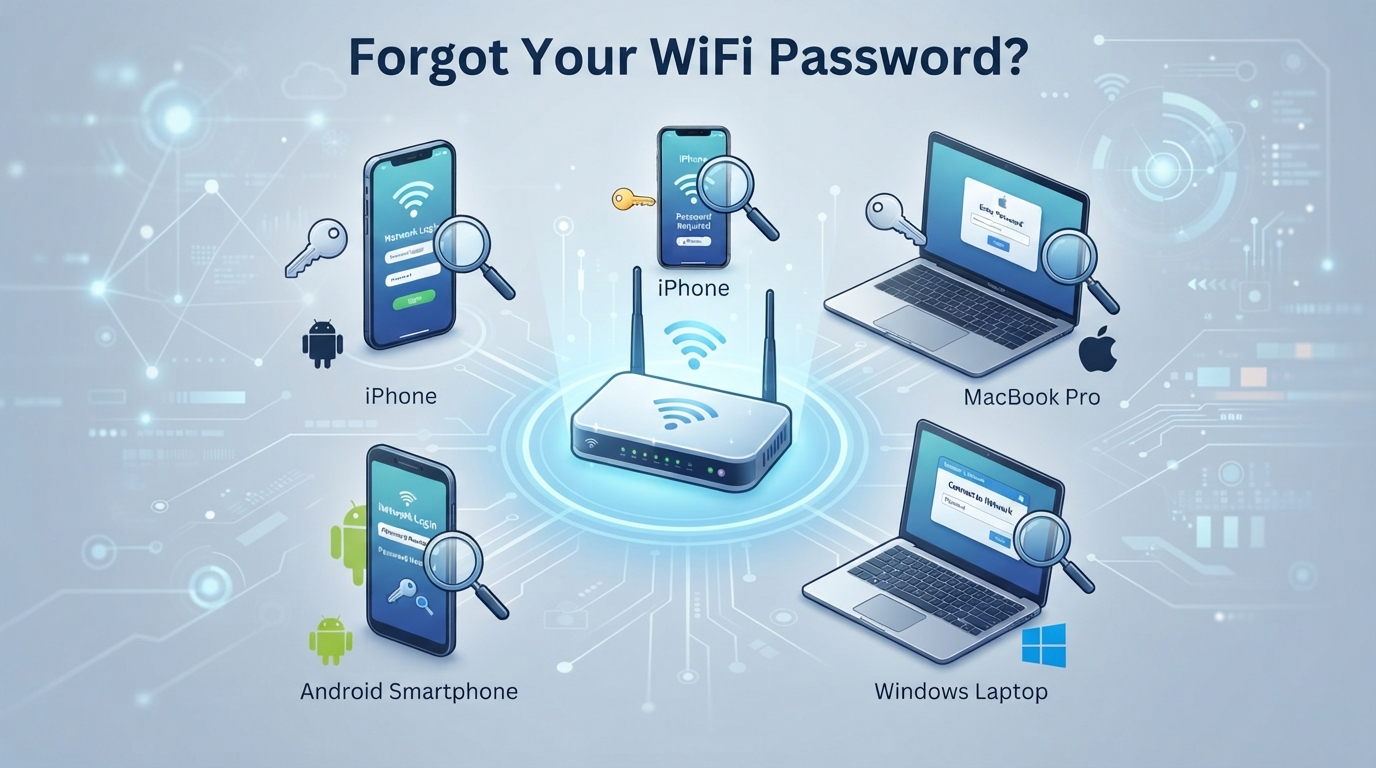
Forgot Your WiFi Password? How to Find It on iPhone, Android, Windows and Mac
Already connected before? Your phone or computer may still have the network saved. Here are the safest built-in ways to recover or share your own WiFi credentials.
Before You Start
This guide is for networks you own or are authorized to use. You normally need to unlock the device with its passcode, Face ID, Touch ID, Windows sign-in, or Android screen lock before saved network credentials can be accessed or shared.
How to Find a WiFi Password on iPhone
On modern iPhones, open Passwords, authenticate, then choose Wi-Fi. Select the saved network and tap the password field to reveal or copy it.
You can also use Settings > Wi-Fi, open the information page for the current network, and tap the password field. For previously joined networks, Apple also provides access through the saved-network list.
How to Find or Share WiFi Details on Android
On standard Android, go to Settings > Network & internet > Internet, select the WiFi network, then choose Share. Android can generate a QR code that another device can scan to join the same network.
Depending on the Android version and manufacturer, the password may also appear with the QR code after you authenticate. Samsung, Google Pixel and other manufacturers can use slightly different menu names, so the QR-sharing option is the most consistent concept to look for.
How to Find a WiFi Password on Windows 11
Open Settings > Network & internet and open the WiFi network properties. Next to Wi-Fi network password, choose Show. Windows also allows you to open Manage known networks, select a previously saved network and show its password.
On older Windows interfaces, you can use Network and Sharing Center, open the WiFi connection, select Wireless Properties > Security, then enable Show characters.
How to Find a WiFi Password on Mac
Open the Passwords app on your Mac, select Wi-Fi, then choose the network. Hover over or select the password field to reveal or copy the saved password after authentication.
On supported macOS versions, another route is System Settings > Network > Wi-Fi > Advanced, where known networks can offer a Copy Password option.
Quick Comparison
| Device | Where to Look | Useful Sharing Method |
|---|---|---|
| iPhone | Passwords > Wi-Fi | Copy password / Apple sharing / QR where available |
| Android | Settings > Network & internet > Internet | QR code |
| Windows | Network & internet / Manage known networks | Show password / QR on supported Windows 11 versions |
| Mac | Passwords > Wi-Fi | Copy password / Apple sharing / network QR code |
What If None of Your Devices Has the Password Saved?
Check the router label or the information supplied by your internet provider. If you administer the router, its official app or administration page may let you view or change the WiFi password. If it is a hotel, office, café or another managed network, ask the network administrator or staff instead of changing the router.
Why Can’t I See the Password?
- The device may never have joined that network.
- The network may have been forgotten or removed.
- Your operating system may be older than the version that supports the method described.
- Android menu names can differ between manufacturers.
- A work or school device may restrict access through administrator policies.
Should You Reset the Router?
Usually not. A factory reset should be a last resort because it can erase the router configuration, network name, custom password and ISP-related settings. First check a device that has already joined the network, the router label, your ISP app or the router administration interface.
Frequently Asked Questions
Can I see an old WiFi password on iPhone?
Yes, if the network is still saved. Apple supports viewing previously joined WiFi networks and their saved passwords after device authentication.
Can Android show my WiFi password?
Android provides a built-in way to share saved WiFi information using a QR code. Whether the password is also displayed as text can vary by Android version and manufacturer.
Can Windows show passwords for networks I am not currently connected to?
Yes, current Windows 11 versions can show passwords for saved networks through Manage known networks.
Can a Mac show previously saved WiFi passwords?
Yes. The Passwords app can list saved WiFi networks and reveal their passwords after authentication.
Is it safer to share a QR code than type the password?
A QR code is convenient because the recipient does not have to type the password, but it still grants access to the network. Only share it with people you trust.
Bottom Line
Before resetting your router, check a device that has already connected to the network. iPhone, Mac and Windows provide built-in ways to reveal saved WiFi passwords, while Android offers a simple QR-sharing workflow. These methods are faster and safer than installing third-party “WiFi password recovery” apps.
Apple Support — saved WiFi passwords on iPhone and Mac.
Google Android Help — sharing saved WiFi network information.
Microsoft Support — finding saved WiFi passwords in Windows.